Follow the steps below for help on the set up of FireAngel’s Pro Connected FP1000W2-R and the rest of the Pro Connected range.
The below guide gives you all the steps to follow to set up your new FP1000W2-R with your FireAngel Pro Connected alarms.
Download our FireAngel Connected app


Creating an interlinked network with wireless communication.
- Install Alarm 1 as described in the manual (battery powered install here or mains powered install here).
- Then install the base plate for Alarm 2 in one of the recommended locations.
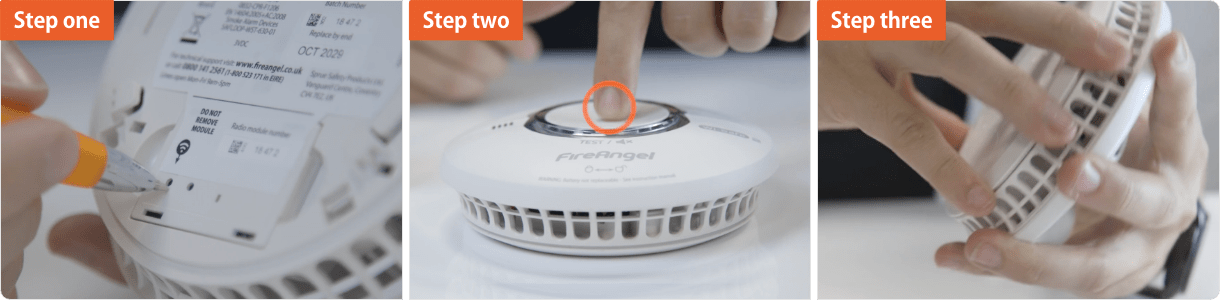
- Using a ballpoint pen briefly push and release the ‘learn button’ on the back of Alarm 2. The red LED next to the learn button will flash briefly then light up for approximately five seconds.
- During these five seconds you need to briefly press the test button on Alarm 1 to wirelessly interlink the two alarms. Alarm 1 will give an audible sound consisting of two cycles of three loud beeps.
- The red LED on the wireless module of Alarm 2 will flash to indicate that it has been ‘learned-in’ successfully. If the test button is not pressed quickly enough, the ‘learn-in’ process will fail. If this happens, repeat the process.
- To complete the installation, fit Alarm 2 onto it’s base plate.
Additional alarms should be ‘learned-in’ in the same way. When ‘learning-in’ additional alarms, any alarm already in the network, can be used as ‘Alarm 1’. You do not have to ‘learn-in’ to every alarm in the network.
How to unlearn your connected alarms
Please watch the video below if for any reason you need to remove one or all of the alarms in your connected network.


